
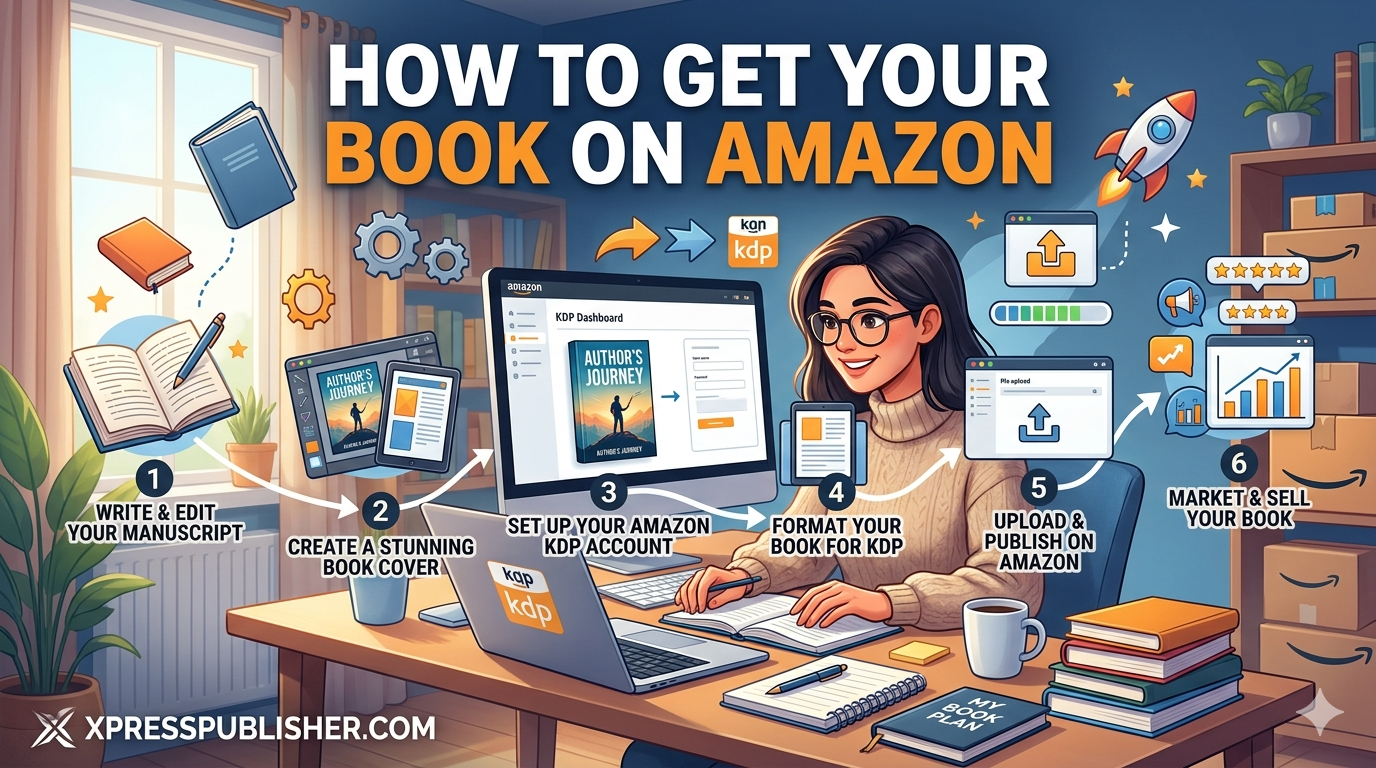
Getting your book on Amazon is the goal most first-time authors have from the moment they finish writing. Amazon KDP makes the upload process accessible to anyone, which is genuinely good news. What most people underestimate is how much the setup decisions matter. The categories you pick, the keywords you choose, how you write your description, and how you price the book all determine whether readers find it or scroll straight past it. This guide walks through every step of how to get your book on Amazon the right way, from creating your account all the way to what you should be doing in the first 30 days after going live.
Table of contents
- What Amazon KDP is and how it works
- Step 1: Create your KDP account
- Step 2: Enter your book details
- Step 3: Choose your keywords and categories
- Step 4: Upload your manuscript and cover
- Step 5: Set your price and royalty rate
- Step 6: Review and publish
- Step 7: What happens after your book goes live
- Common mistakes to avoid
- What to do if you need professional help
- Frequently asked questions
What Amazon KDP is and how it works
Amazon KDP stands for Kindle Direct Publishing. It is Amazon’s free self-publishing platform where authors can publish ebooks and print books and sell them directly to readers. Once your book is approved, it appears on Amazon.com, Amazon.co.uk, and other Amazon marketplaces globally, usually within 24 to 72 hours of submission.
There are no upfront fees. Amazon takes a percentage of each sale and you keep the rest. For ebooks priced between $2.99 and $9.99, you earn 70% of the sale price. For print books, you earn 60% of the list price after printing costs are deducted per copy.
Understanding how KDP works before you start saves you from decisions you later have to undo. Many first-time authors rush the setup and end up with wrong categories, a weak description, or pricing that actively hurts their sales. Spending an extra hour on this properly is genuinely worth it.
Step 1: Create your KDP account to get your book on Amazon
Go to kdp.amazon.com and sign in with your existing Amazon account, or create a new one. Once logged in, you land on your KDP Bookshelf, which is the dashboard where all your titles live and where you manage sales and royalties.
Before you can publish and actually get paid, two things need to be completed in your account settings. First, fill in your tax information. Amazon is required by law to collect this before paying royalties. US authors complete a W-9 form. Authors outside the US complete a W-8BEN form. Second, add your bank account so Amazon knows where to send your payments. Both are found under the Account tab in your KDP dashboard.
Do not skip this and plan to come back to it later. Amazon holds your royalties until your tax and payment details are complete, so you might as well sort it before you publish.
Step 2: Enter your book details
Click Create a New Title on your Bookshelf. You will be asked to choose between a Kindle ebook and a paperback. If you are publishing both formats, they are set up separately. Most authors start with the ebook first.
Book title and subtitle
Enter your title exactly as it appears on your cover. Do not stuff keywords into the title field. Amazon’s terms of service prohibit this and they will flag it. Your subtitle is where you can add descriptive language that helps readers understand what the book is about and signals relevance to search.
Author name
Enter your name exactly as you want it to appear on Amazon. If you are using a pen name, this is where you enter it. Make sure the name on your KDP setup matches what is printed on your cover file exactly, because mismatches cause review delays.
Book description
Your book description is one of the most consequential decisions in the whole publishing process. This is the text that sits on your Amazon product page and most readers will read it before deciding whether to buy. It needs to sell the emotional experience of your book, not summarise the plot.
Write it the way a back cover reads. Open with a hook that speaks directly to the reader. Create tension or curiosity. End with a reason to buy now. A description that reads like a book report will hurt sales regardless of how good the actual writing is. You can use basic HTML formatting inside the description field including bold, italics, and paragraph breaks to make it easier to skim and read.
Step 3: Choose your Amazon keywords and categories
This step has more impact on your Amazon discoverability than almost anything else. Most first-time authors fill in obvious broad keywords and wonder why their book never surfaces in search results. The authors who get found are the ones who think carefully here.
How to choose the right keywords
Amazon gives you seven keyword slots and each slot can hold a full phrase, not just a single word. Use all seven and make each one a phrase a real reader would type into Amazon when looking for a book like yours.
If you have written a cozy mystery set in a bakery, for example, do not use “mystery” as a keyword. Use phrases like “cozy mystery with recipes,” “bakery mystery series,” or “small town mystery female protagonist.” Specific phrases have less competition and attract readers with much clearer intent than broad single words do.
Amazon’s search bar autocomplete is one of the best free keyword research tools available to you. Start typing a phrase and see what Amazon suggests. Those suggestions come directly from what real shoppers are searching for right now.
How to choose the right categories
Amazon lets you choose two categories at setup. Always choose the most specific subcategory that accurately fits your book rather than the broadest one available. Ranking number one in a niche subcategory earns you a bestseller badge on your book page, which increases conversion significantly. Being invisible in a competitive broad category does nothing for you.
After publishing, you can contact Amazon KDP support and request up to ten categories in total. Most authors never know this is possible. It meaningfully increases the number of places your book can surface across the site.
Step 4: Upload your manuscript and cover files
This is where your formatted files go. KDP accepts Word documents for ebooks but the output is almost always inferior to a properly formatted EPUB file. If you want your ebook to look professional across all Kindle devices, use an EPUB produced by a dedicated formatting tool or a professional formatter.
For print books, you need a PDF formatted to your chosen trim size with the correct margins, fonts, and bleed settings. KDP provides downloadable templates for every trim size on their help pages. If you are not confident about formatting your files correctly, our complete manuscript formatting guide covers everything you need to know before uploading.
Cover file requirements
For ebooks, upload a JPEG or PNG at a minimum of 2,560 pixels on the longest side with a 1.6:1 height to width ratio. For print books, your cover file must include the front, spine, and back in a single PDF sized precisely to your trim size and page count. KDP has a cover template generator that calculates exact dimensions for you.
Use KDP’s previewer tool before you submit. Check every page of the ebook preview on both phone and tablet views. Check the print preview for margin issues, widow lines, and anything that looks off. Fixing problems before submission is far easier than after your book is live.
Step 5: Set your price and royalty rate
Ebooks priced between $2.99 and $9.99 qualify for the 70% royalty tier. Anything outside that range drops to 35%. Most debut fiction ebooks perform best in the $2.99 to $4.99 range. Non-fiction and business books typically support higher prices between $7.99 and $9.99 because readers buy based on the value of the information rather than browsing for a deal.
For print books, KDP calculates a minimum list price based on your page count and trim size. Below that floor, the printing cost exceeds what the sale brings in, so you simply cannot go lower. Most authors aim for a royalty of at least $2 to $3 per print copy sold after printing costs.
You can also enrol your ebook in Kindle Unlimited at this stage. KDP Select, the program that powers Kindle Unlimited, requires ebook exclusivity, meaning your ebook cannot be sold on other platforms while enrolled. In return, you earn income from page reads by KU subscribers. For genre fiction in romance, fantasy, and thriller this trade-off is usually worth making. For non-fiction or literary fiction, selling wide across multiple platforms tends to perform better over time. Our guide on Amazon KDP vs IngramSpark covers this decision in full.
Step 6: Review and publish your book on Amazon
Once your details are in and your files are uploaded, click Publish. Amazon reviews the submission and emails you when it goes live. New titles typically take 24 to 72 hours to clear review.
Avoid making changes to your listing during this window unless you spot a genuine error. Every update to a live listing triggers a re-review, which can pull the book from search results temporarily. Wait for it to go live, look it over carefully, then make any adjustments you need.
If your files are rejected, Amazon will tell you exactly why. The most common reasons are cover dimensions that do not match the manuscript, incorrect bleed settings on print covers, and formatting errors in the interior file. Fix the specific issue flagged and resubmit.
Step 7: What happens after your book goes live on Amazon
Your book is live. Now the real work starts. Publishing on Amazon does not mean readers automatically find it. Amazon’s algorithm surfaces books based on sales velocity, review count, and relevance to search queries. A brand new title with no reviews and no sales history starts at the bottom of that ranking and climbs through activity.
The most important things to do in your first 30 days are gathering reviews, sending external traffic to your Amazon page, and keeping an eye on your keyword and category performance. Getting to 10 reviews is your first major milestone because books with 10 or more reviews perform significantly better in Amazon’s internal search than those with fewer.
For a full breakdown of what actually drives book sales after launch, read our guide on book marketing for self-published authors.
Common mistakes to avoid when getting your book on Amazon
Uploading a Word document instead of a formatted EPUB. Word documents convert poorly. Spacing errors, inconsistent fonts, and broken paragraph indents are common results. Format your ebook properly before uploading.
Choosing categories that are too broad. More competition means less chance of ranking. Go as specific as your book genuinely fits.
Writing a description that summarises instead of sells. Readers do not need a plot recap. They need to feel that your book is worth their time and money. Write it like marketing copy, not a report.
Pricing at $0.99 to seem accessible. A $0.99 ebook signals low quality to most readers. The $2.99 to $4.99 range actually converts better for debut fiction because it sits within what readers expect to pay in that category.
Publishing before the book is properly edited. One-star reviews citing grammar problems and structural issues follow a book for its entire commercial life and are nearly impossible to recover from. Edit thoroughly before you publish. Our guide on what type of book editing you actually need explains which level of editing your manuscript requires before it is ready for readers.
What to do if you need professional help getting your book on Amazon
A lot of first-time authors find the technical and strategic side of self-publishing more involved than they expected. Formatting files to KDP specifications, designing a cover that competes with traditionally published titles in the same genre, writing a description that converts browsers into buyers, and setting up categories and keywords correctly are each a specialist skill on their own.
At XpressPublisher, we handle the whole process for authors in the USA and UK. Manuscript editing, professional cover design, formatting, KDP setup, distribution, and marketing are all managed under one roof so you are not chasing a dozen different contractors. You keep full rights to your book and every royalty from every sale.
If you want to understand what professional publishing costs before making a decision, read our honest breakdown of self-publishing costs in 2026. Or if you are ready to talk about your book, get a free proposal from XpressPublisher today.
Frequently asked questions about getting your book on Amazon
How long does it take to get your book on Amazon?
Once you submit through KDP, Amazon typically reviews and approves new titles within 24 to 72 hours. After approval the book is live and available to buy. From starting your KDP setup to going live is usually one to two days, provided your files meet Amazon’s technical requirements on the first submission.
Is it free to publish on Amazon?
Yes, completely free. There are no upfront fees to upload your book. Amazon takes a percentage of each sale: 30% for ebooks in the 70% royalty tier, and 40% of the list price plus printing costs for paperbacks. You pay nothing until a copy sells.
How much does Amazon pay authors per book sold?
For ebooks priced between $2.99 and $9.99, Amazon pays 70% of the list price. Outside that range, the royalty drops to 35%. For paperbacks, you earn 60% of your list price minus the per-copy printing cost, which depends on your page count, trim size, and paper type. Royalties are paid approximately 60 days after the end of the month a sale was made.
Can I sell my book on Amazon and other platforms at the same time?
For print books, yes. Your KDP paperback can sit on Amazon while the same title is distributed through IngramSpark to other retailers simultaneously. For ebooks, it depends on KDP Select. If you enrol, your ebook must be exclusive to Amazon. If you do not enrol, you can sell the ebook on Amazon and any other platform at the same time.
What file format does Amazon KDP accept?
For ebooks, KDP accepts EPUB files (the recommended format), DOCX, and several others. EPUB consistently produces the best results. For print interiors, KDP accepts PDF files formatted to your chosen trim size. Ebook covers are uploaded as JPEG or PNG, while print covers must be a single PDF that includes the front, spine, and back together.
Do I need an ISBN to publish on Amazon?
For ebooks, no. Amazon assigns a free ASIN (Amazon Standard Identification Number) automatically. For print books, KDP offers a free ISBN but it ties your book to Amazon’s own distribution. If you also want to distribute your print book through IngramSpark to other retailers, you need your own ISBN purchased through Bowker in the USA or Nielsen in the UK.
At XpressPublisher, we help authors across the USA and UK publish professionally on Amazon and beyond, handling editing, cover design, formatting, KDP setup, and marketing from start to finish. Get a free proposal today and find out what it takes to get your book live on Amazon the right way.
Call 805-635-2324 (USA) or +44 784 689 5422 (UK). Email info@xpresspublisher.com. Rated 4.2 Great on Trustpilot.